15 Windows 11 Settings Worth Changing for Better Productivity
Fifteen Windows 11 settings that quietly drain time and focus, with step-by-step paths through the Settings app to fix each one in a few minutes or less.
Advertisement
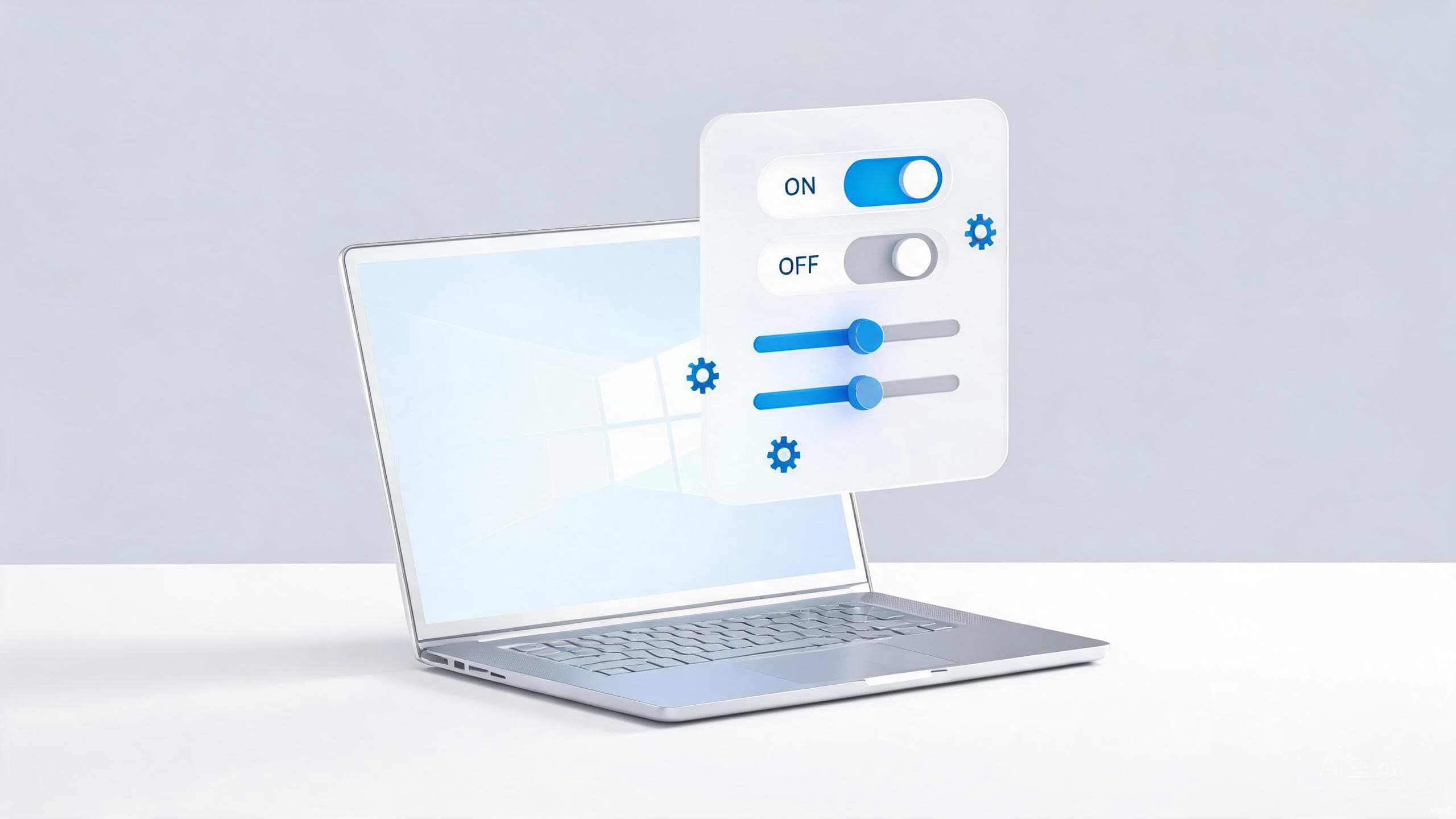
Windows 11 ships in a state designed to please everyone, which means it is optimized for no one. Ads sneak into the Start menu, apps you never use demand attention at startup, and notifications arrive with the enthusiasm of a golden retriever.
The good news is that a focused hour in the Settings app can reclaim most of that lost attention. These fifteen changes are all reversible, each takes only a few minutes, and together they pay off every single day you use the machine.
Silence the Distractions
-
Turn off tips and suggestions. Head to Settings > System > Notifications and switch off the options that offer suggestions on using your device, along with the "additional settings" like welcome experiences. Windows will stop nudging you toward features you never asked for. The notification sound controls live on the same page, if the default chime has worn out its welcome.
-
Configure Do Not Disturb properly. In Settings > System > Notifications, set automatic rules so Do Not Disturb turns on during presentations, while playing games, or during set work hours — and add priority apps that are allowed to break through. One honest setup beats dismissing banners all day long.
-
Use Focus sessions. Settings > System > Focus starts a session that mutes notifications, clears badges from taskbar apps, and optionally shows a countdown in the clock. Five minutes of setup gives you a one-click deep work mode, and the session timer doubles as an honest record of how long tasks actually take.
-
Set active hours. Under Settings > Windows Update, define the hours you actually use your PC so Windows stops installing updates and restarting mid-task. Updates still land overnight instead of during your afternoon presentation.
Speed Up Your Daily Workflow
-
Trim your startup apps. Open Settings > Apps > Startup and disable anything that does not need to launch with Windows — chat clients, updaters, and helper utilities are the usual suspects. Fewer startup programs means you reach a usable desktop noticeably faster. For a deeper cleanup, see our guide to speeding up a slow Windows PC.
-
Master Snap Layouts. In Settings > System > Multitasking, make sure Snap Layouts are enabled, then hover the maximize button on any window to arrange apps in predefined grids. Dragging a window to a screen edge still works for halves, but the grid layouts cover quarters, thirds, and side-by-side trios that manual resizing never quite gets right.
-
Enable clipboard history. Go to Settings > System > Clipboard, toggle Clipboard History on, and learn the Windows key + V shortcut. You get a searchable list of recently copied items — a quiet superpower for anyone who moves text around all day. Pinning keeps frequently used snippets, like email signatures and ticket numbers, permanently in the list.
-
Stop auto-restarting apps. In Settings > Accounts > Sign-in options, disable the setting that automatically saves restartable apps and reopens them at sign-in. Windows will stop resurrecting yesterday's windows every time you boot.
-
Set the power mode. Settings > System > Power & battery lets you prioritize best performance when the machine is plugged in. Combined with a startup cleanup, this is where a large share of perceived "slow PC" complaints actually get resolved.
Tighten Privacy Without Breaking Anything
-
Turn off the advertising ID. In Settings > Privacy & security > General, switch off the advertising ID and tailored experiences. Windows stops building an ad profile from your activity, with no functional downside. There is more context in our digital privacy checklist.
-
Disable search highlights. Under Settings > Privacy & security > Search permissions, turn off search highlights. The Start menu search box reverts to being a search box instead of a billboard.
-
Audit app permissions. Settings > Privacy & security > App permissions shows which apps can reach your location, camera, microphone, and files. Revoke access from anything that cannot explain why it needs it. The same discipline applies to your browser — see our browser privacy guide.
Make the System Comfortable
-
Turn on Storage Sense. Settings > System > Storage activates automatic cleanup of temporary files and recycle bin contents. Your drive stays tidy without a quarterly manual purge, and full drives stop slowing everything down. After enabling it, skim the storage view to see which categories are actually eating space — the answer is usually surprising.
-
Set a Night light schedule. Under Settings > System > Display > Night light, schedule warmer screen colors for the evening. Late-night eye strain drops noticeably, and you can disable it instantly when color accuracy matters for photo work.
-
Claim your default apps. In Settings > Apps > Default apps, set your preferred browser, mail client, and PDF viewer so links and files stop opening in whatever Microsoft chose for you. It is your computer; file associations should reflect that. Windows occasionally nudges defaults back after major updates, so recheck this page now and then.
Conclusion
None of these fifteen settings is dramatic on its own. Together they remove a dozen small frictions — a notification here, a slow boot there, an ad where a search box should be — and the difference accumulates into a machine that feels genuinely faster and calmer. And if the PC still feels sluggish once all fifteen are done, the bottleneck is probably hardware rather than settings.
Run through the list once, then revisit it every few months, because Windows updates have a habit of quietly re-enabling features you turned off. Twenty minutes of settings hygiene is the cheapest productivity upgrade you will ever make on a PC.