Browser Privacy for Beginners: Settings and Extensions That Matter
Practical browser privacy for beginners: tracking prevention, cookie choices, HTTPS-Only mode and the content blockers worth installing today.
Advertisement
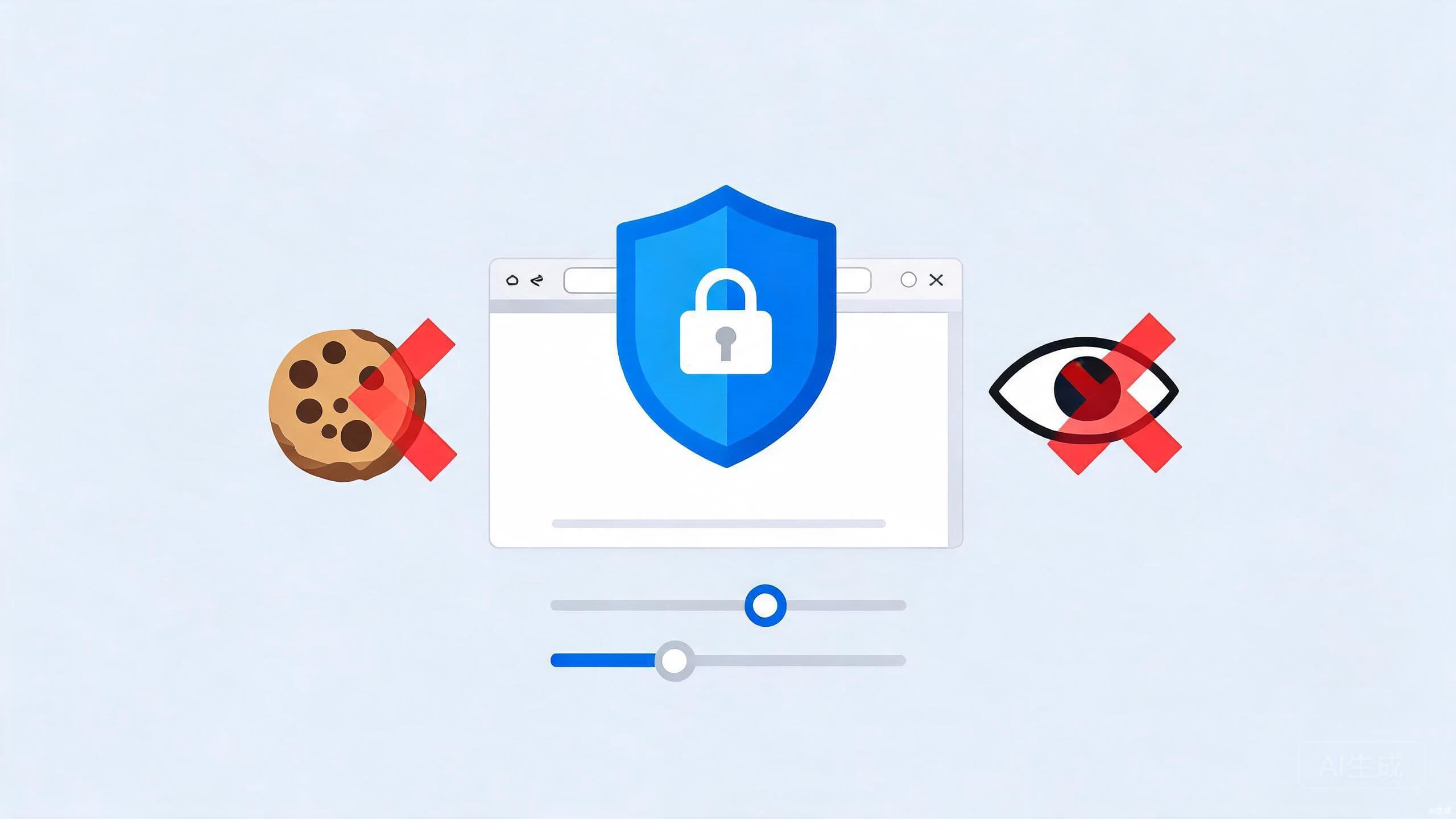
Your browser is probably the app you use most, which makes it the app that knows you best. Every site you visit can, by default, learn things: your approximate location, the device you are holding, and — through advertising trackers — the trail of pages you have visited across the web. None of this requires a conspiracy; it is largely ordinary, profitable ad technology.
The encouraging part is that browsers have pushed back hard on your behalf. Settings that used to be buried or nonexistent are now front and center, and a handful of small changes deliver most of the available protection. No tinfoil hat required — just an hour of setup.
Turn On Built-In Tracking Prevention
Two terms cover most of what you are blocking: third-party trackers, code embedded by advertising networks that follows you from site to site, and fingerprinting, a sneakier technique that identifies your browser by its unique combination of settings, fonts and hardware traits even without cookies.
Each major browser now ships defenses against both, under different names:
| Browser | Where to look | Typical options |
|---|---|---|
| Firefox | Settings > Privacy & Security | Standard, Strict or Custom |
| Microsoft Edge | Settings > Privacy > Tracking prevention | Basic, Balanced or Strict |
| Safari | Built in by default | Managed automatically |
| Brave | Shields built in | Per-site controls |
| Chrome | Privacy settings | Third-party cookie limits |
Firefox's Strict mode and Edge's Strict setting block more trackers but occasionally break a page element; both let you add an exception for a single site with a click. Safari's protections work quietly in the background and generally need no adjustment, while Brave blocks ads and trackers by default through its Shields feature.
There is no single "right" level. If a site misbehaves, loosen protection for that site rather than turning everything off globally.
Get Smart About Cookies
Cookies have a reputation they do not entirely deserve. First-party cookies — set by the site you are actually visiting — are what keep you logged in and keep shopping carts working. Third-party cookies, set by outside domains, are the classic cross-site tracking mechanism.
The practical middle ground:
- Block third-party cookies in your browser's privacy settings — most browsers now offer this directly.
- Allow first-party cookies so everyday logins keep working.
- Clear cookies selectively, for a specific site, when something misbehaves.
Blocking every cookie outright turns the web into an obstacle course of login screens for marginal extra privacy. If you want a broader look at how your data is collected beyond the browser, our digital privacy guide continues from here.
Turn On HTTPS-Only Mode
Unencrypted HTTP connections can be read by anything sitting between you and a website — including the operator of a coffee-shop Wi-Fi network. HTTPS encrypts that traffic, and nearly all major sites support it now.
Most browsers can insist on it:
- Firefox: Settings > Privacy & Security > HTTPS-Only Mode, enabled in all windows.
- Microsoft Edge: Settings > Privacy > Security > automatically switch to secure connections.
- Chrome: Security settings offer an always-use-secure-connections toggle.
- Safari: upgrades requests automatically in current versions.
The cost is negligible. The occasional ancient site that lacks HTTPS will simply fail to load, which is arguably a public service.
Choose a Content Blocker and Keep It Lean
An extension like uBlock Origin blocks ads and tracker requests before they load, improving both privacy and page speed. Firefox, Edge and Chrome all support content blockers from their official extension stores; Safari supports content blockers built for its own extensions system.
Two rules keep this safe:
- One blocker is enough. Running multiple blockers mostly causes breakage and confusing conflicts.
- Audit permissions. Extensions can read and change page content, so a shady "privacy" extension is worse than no extension at all. Prefer well-known, open-source projects with long track records, and remove anything you no longer use.
This is also mild housekeeping for performance: a lean extension list is one less thing dragging your browser — and your whole computer — down.
Password Managers and Passkeys
Reused passwords remain one of the most common ways accounts get taken over, which makes this only loosely a browser-privacy issue — it is the account-security issue. Modern browsers include built-in password managers that sync across devices and flag reused or compromised passwords. Dedicated managers like Bitwarden or 1Password add stronger organization, secure sharing and independence from any single browser.
The longer-term fix is even simpler. Passkeys replace typed passwords with device-based authentication that phishing sites cannot easily steal. Our passkeys explainer covers how they work and where you can use them today.
What Private Browsing Actually Does
Worth clearing up: a private or incognito window does not make you anonymous. It opens a fresh, temporary session and discards history and cookies when you close it — genuinely useful for logging into a second account, keeping a gift search off shared history, or testing a site from a clean slate.
It does not hide your activity from your internet provider, your employer or school network, or the websites themselves. For that job you would need additional tools and a clear reason. For most people, most of the time, the settings above are the right level of effort — and if sluggishness rather than snoopiness is your main browser complaint, our tutorial on speeding up a slow Windows PC has you covered.
Conclusion
Browser privacy is less about paranoia and more about defaults. Turn on your browser's strictest comfortable tracking protection, block third-party cookies, insist on HTTPS, run one reputable content blocker, and let a password manager — or better, passkeys — handle your logins. That short checklist takes maybe an hour once, keeps the bulk of routine tracking at bay, and leaves you with a faster, quieter browser as a bonus.